

Reading history
Posts move through your feed quickly. Reading history keeps a list of every post you've opened, so you can find it again later. Only you can see it.
Opening your reading history
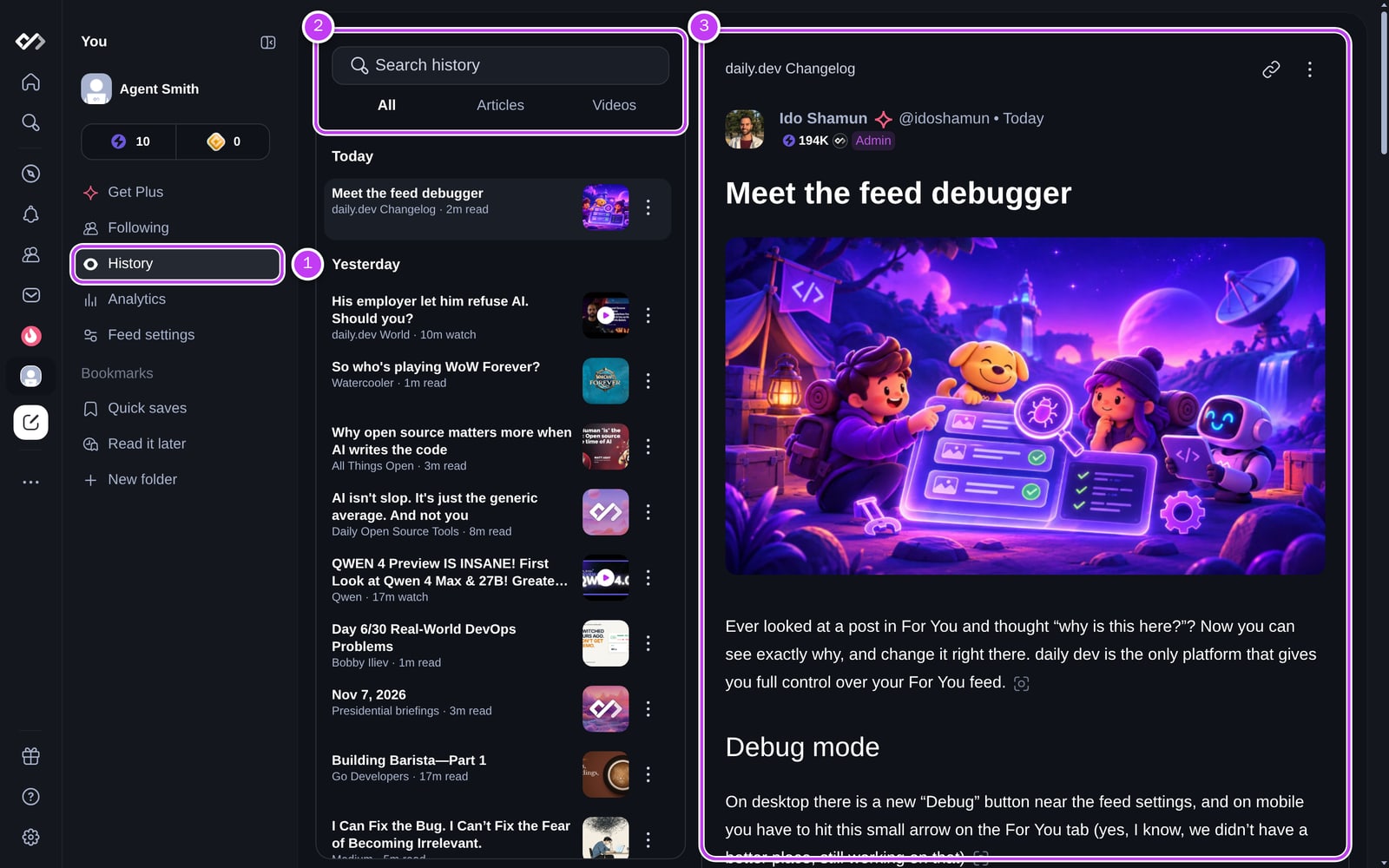
- Click History in the You panel of the sidebar (1).
- Or go to daily.dev/history.
- On mobile, open the You tab and tap History.
How it works
- Posts are grouped by day, newest first.
- A post is added when you open it. If you open the same post again within a week, it keeps its original date and doesn't move to the top.
- On a large screen, clicking a post opens it in the reader pane on the right (3), so you can read it without leaving the list. Use the arrow keys (or
jandk) to move between posts and Enter to open the full post page. - On smaller screens, clicking a post opens the post page.
Searching and filtering
- Search history (2) looks through the titles and summaries of the posts you've read.
- All, Articles, and Videos filter the list by post type.
Looking for something you haven't read yet? Use search instead.
Actions on each post
Hover over a post and open the ⋯ menu to:
- Upvote or downvote it.
- Copy its link or share it.
- Save it to your bookmarks, or to a bookmark folder (Plus).
- Remove post from your history.
Removing a post only hides it from this list. It still counts toward your reading streak and the reading stats on your profile. There's no way to clear your whole history at once.
Sharing to a Squad from your history
When you share a link to a Squad, you can pick it from your reading history instead of pasting the URL. Only posts from public sources appear in that list.
Frequently asked questions
Click History in the You panel of the sidebar, or go to daily.dev/history. On mobile, it's in the You tab.
Spotted something to fix? Contact us