

Account settings
Your settings are where you edit your profile, manage how you log in, and control how daily.dev looks and behaves. To open them, click the gear icon at the bottom of the left sidebar, or open the profile menu and choose Settings.
What's in settings
| Group | Pages |
|---|---|
| Account | Profile, Account & Security, Notifications, Appearance, Posting, Invite friends |
| Feed settings | Overview, Topics, Sources and creators, Filters, AI superpowers, General. See Creating a personal feed. |
| Career | Work Experience, Education, Certifications, Open source, Projects & Publications, Volunteering. See Profile experiences. |
| Gamification | Streaks & gamification, with your time zone and weekend days. See Reading streaks. |
| Developers | API Access (Public API) and Integrations (Slack) |
| Billing and Monetization | Payment & Subscription, Organizations (billing), Ads dashboard |
Your Cores wallet, Achievements, DevCard, and analytics are in the profile menu.
Profile
Settings → Profile controls what people see on your profile page.
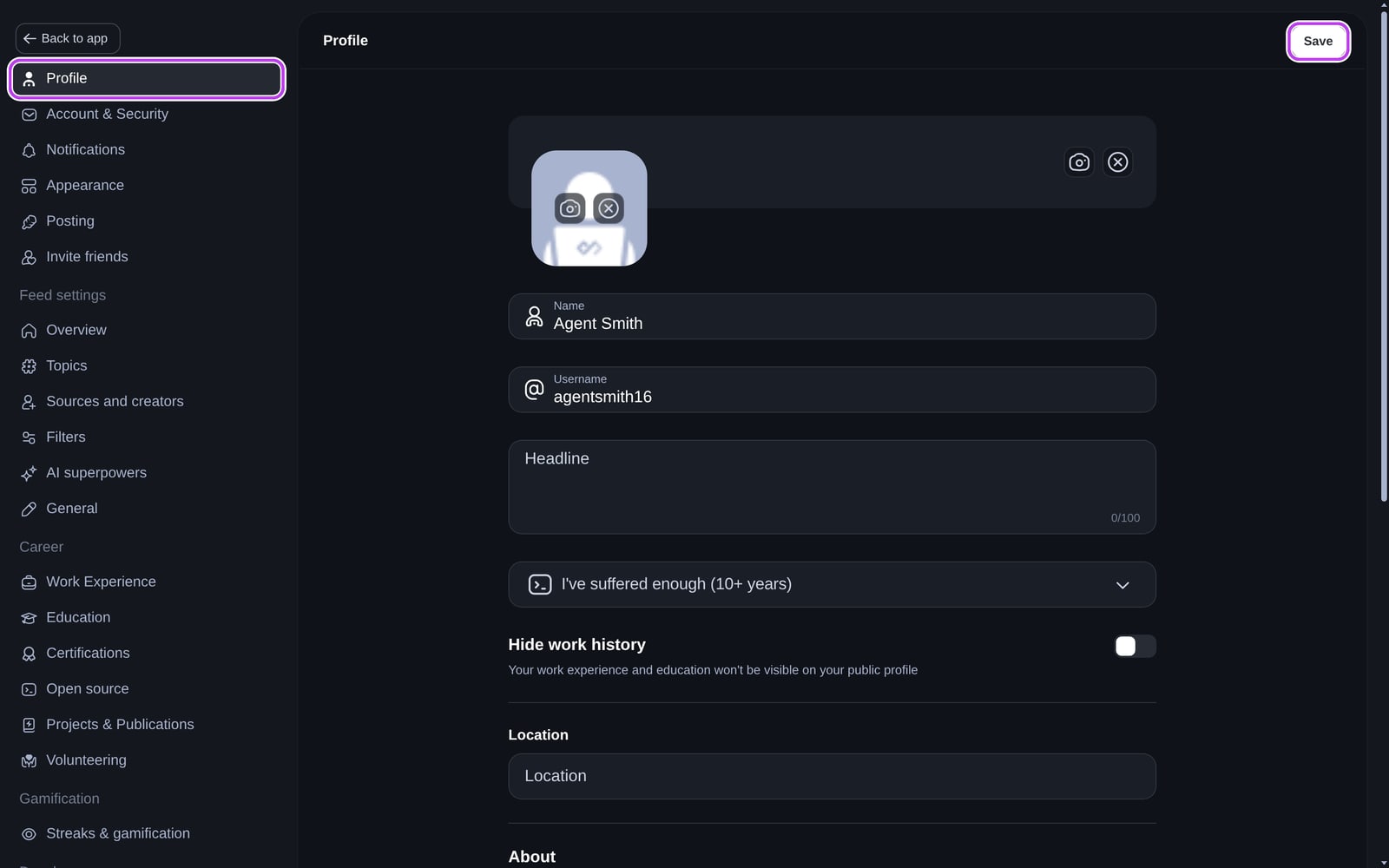
- Cover image and profile picture: up to 1 MB each, in PNG, JPEG, WebP, or AVIF. Animated images show as a still frame. Only upload images you have the right to use. See the content guidelines.
- Name.
- Username: 3 to 39 characters, starting with a letter or number, using only letters, numbers, and underscores. Your profile moves to
daily.dev/<new-username>, and links to the old username stop working. - Headline: a short line under your name, up to 100 characters.
- Experience level: how many years you've been in the field.
- Hide work history: hides your experience sections from visitors.
- Location.
- About: a longer introduction in Markdown, with Write and Preview tabs.
- Links: paste any URL, like your GitHub, LinkedIn, X, or website, and we detect the platform. You can add up to 20 links.
Click Save at the top of the page when you're done. Visitors may see the old version of your profile for about a minute.
To show the tools you use, see Stack & tools. To show your employer's logo next to your name, see Verified company badge.
Account & Security
Settings → Account & Security has your email, login methods, and password.
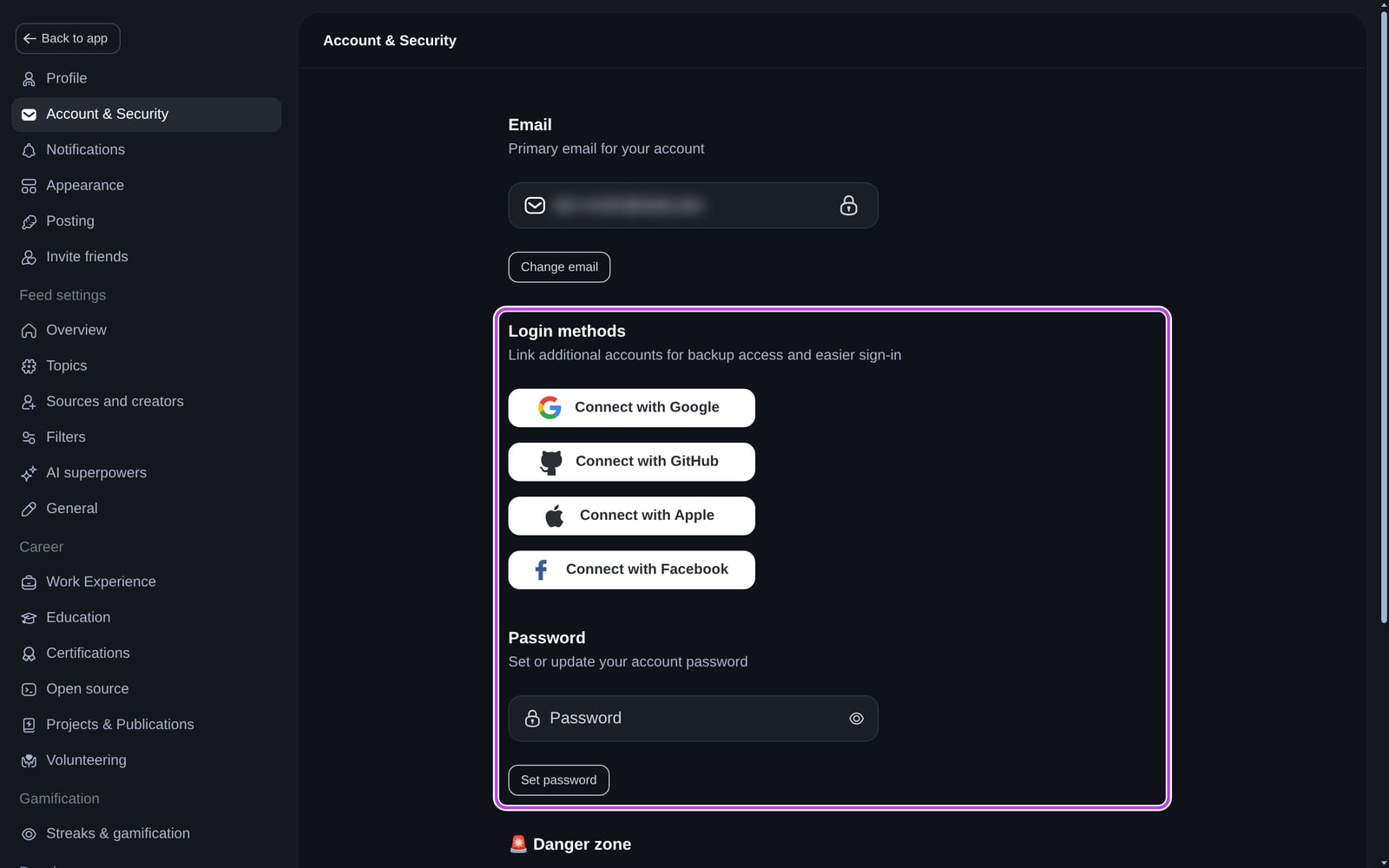
- Email: your primary email. Click Change email, enter the new address, and type the 6-digit code we send to it. You need a password on your account to change your email.
- Login methods: connect Google, GitHub, Apple, or Facebook so you can log in with them too.
- Connected accounts: disconnect a login method. You always need at least one way to log in.
- Password: if you signed up with a social login, use Set password to add a password. If you already have one, use Forgot password on the login screen to change it. Resetting your password logs you out on every device.
- Danger zone: delete your account. See Deleting your profile.
Notifications
Settings → Notifications has separate tabs for in-app and push notifications and for email. See Notification settings and preferences.
Appearance
Settings → Appearance controls how daily.dev looks:
- Theme: dark, light, or auto.
- Layout: cards or list, and the sidebar density (on large screens).
- Preferences: show the feed sorting menu, show the companion widget on other sites, read articles inside daily.dev, show hero cards for highlighted news, and show the feedback button.
- Accessibility: auto-hide notifications after a few seconds.
- Reading: Open links in a new tab or this tab (in the mobile app: in daily.dev or in your browser).
Every option is explained in Appearance settings.
Posting
Settings → Posting sets which tab opens first when you create a new post.
Invite friends
Settings → Invite friends has your personal invite link. Copy it or share it on social platforms. Developers who join through your link appear under Your referrals.
Privacy
Privacy, in the help section of the settings menu, links to our privacy policy and lets you manage your cookie preferences.