

Stack & tools
The Stack & Tools section of your profile shows the technologies, frameworks, languages, and tools you work with. It gives other developers a quick read on your background, and it sits next to your Profile experiences, where you can attach skills to each job.
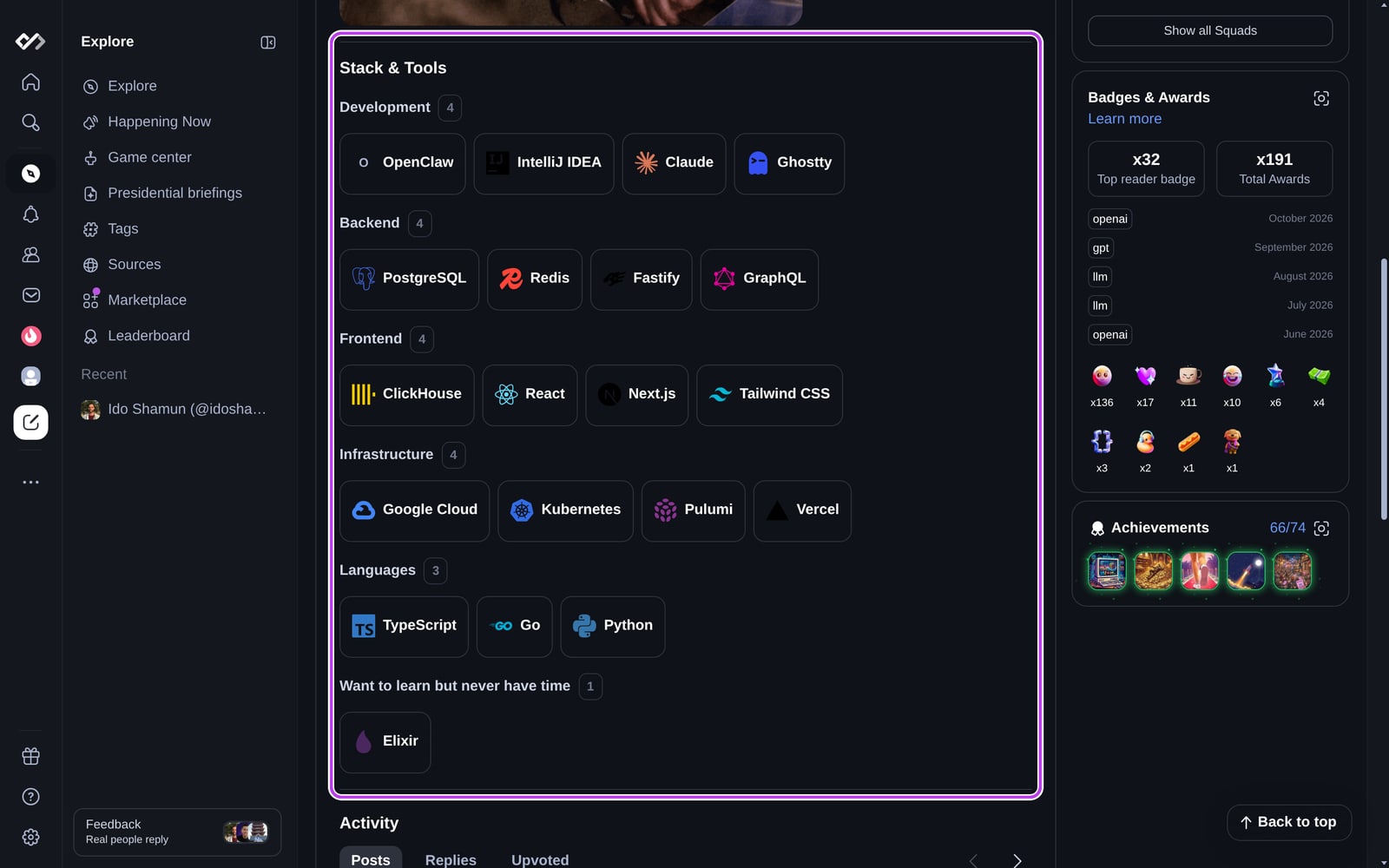
Why add your stack
- Show what you build with. Your stack is one of the first things visitors see on your profile.
- Help others find you. Each tool links to its tool page, which lists the developers who stack it.
- Improve your matches. Career Mode uses your stack to understand your technical background.
Adding items to your stack
- Open your profile.
- In Stack & Tools, click Add (or Add your first item if your stack is empty).
- In Technology, tool, or skill, start typing and pick a suggestion. Suggestions come with the tool's icon. If yours isn't listed, add it as typed.
- Choose a section: Primary, Hobby, Learning, Past, or a custom section name.
- Optionally set Using since (year and month).
- Click Add to stack.
You can add up to 100 items.
Editing, removing, and reordering
- Edit: hover over an item and click the edit icon to change its section or Using since date, then click Save changes.
- Delete: hover over an item and click the delete icon.
- Reorder: drag items by their handle to change the order within and between sections.
The name of an item can't be edited after you add it. To change it, delete the item and add it again.
Sharing your stack
Click Share in the Stack & Tools section to copy or share a link to your stack. The link comes with a preview image of your stack.
Tool pages
Every tool in a stack links to its page on daily.dev, at daily.dev/tools/<tool>. A tool page shows what the tool is, how many developers have it in their stack, the tools it's often stacked with, alternatives, the Squads that use it, top posts about it, and a discussion for developers with a verified work email. You can also add a tool to your stack straight from its page with Add to stack. Browse all tools at daily.dev/tools.
Visibility
Your stack is public. Anyone who visits your profile sees it, grouped by section. If you haven't added anything yet, visitors don't see the section, and you see a prompt to add your first item.