

Organizations overview
Organizations let a company or team buy daily.dev Plus for several people in one subscription. You pay for a number of seats, invite your teammates with a link, and everyone who takes a seat gets all Plus features. Owners and admins manage members, seats and billing from Settings > Organizations.
What you get
- Plus for every seat: each member with a Plus seat gets every Plus feature.
- One subscription: a single monthly or annual bill for the whole team, with seats you can add or remove.
- Invite links: teammates join by opening a link, no accounts to set up for them.
- Member management: see who's in the organization and when they were last active, give or take back seats, and promote admins.
Team subscriptions don't earn the 50% Cores back that personal Plus payments do.
Creating an organization
You create an organization by buying a team plan:
- Go to the Plus page and switch to the Team tab (1). (You can also click New organization in Settings > Organizations.)
- Set your Team size (2), the number of seats you want to pay for.
- Choose a Billing cycle (3): Annual or Monthly.
- Complete the checkout (4).
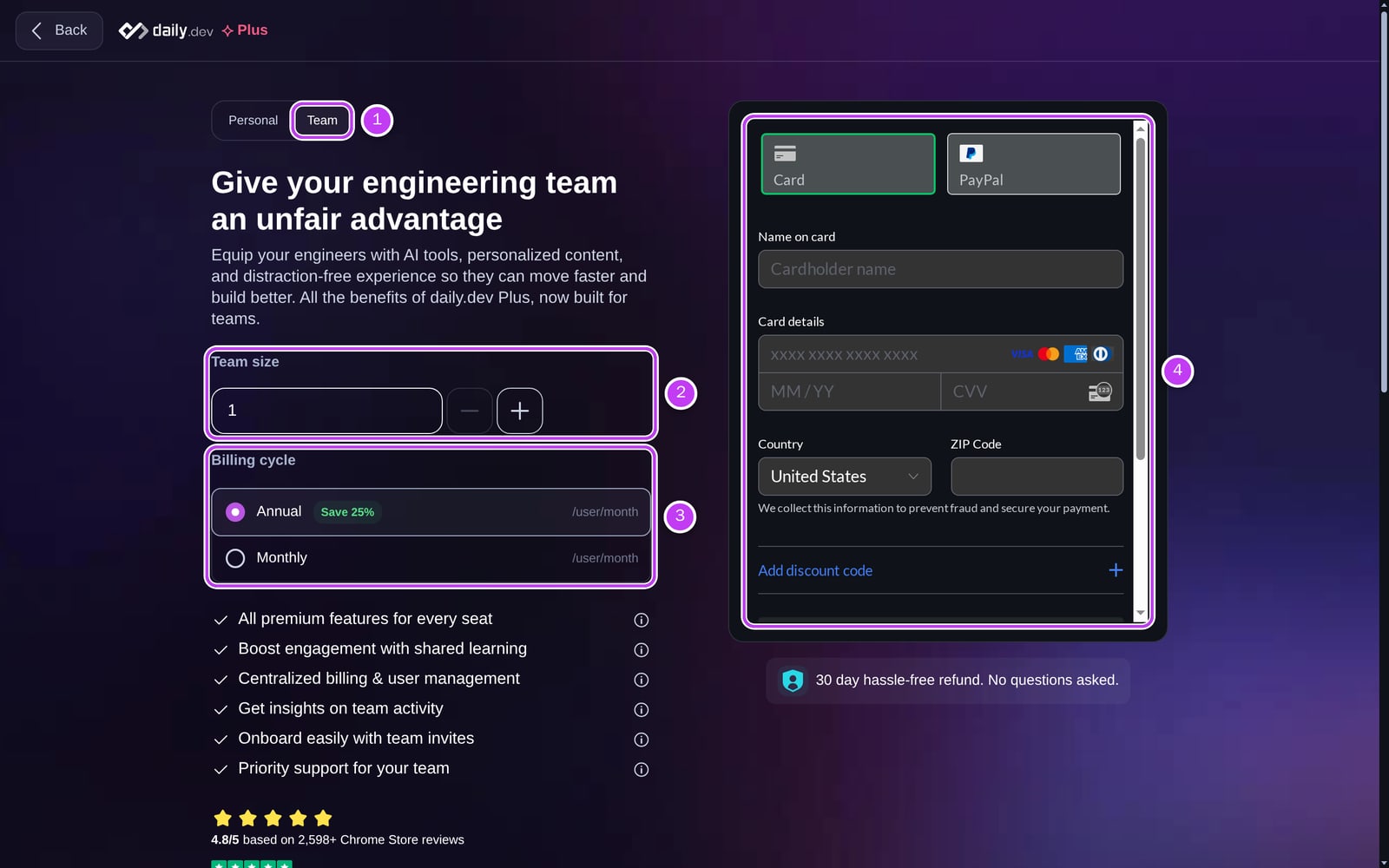
When the payment goes through, the organization is created and you become its owner. You take the first seat, unless you already have your own Plus subscription. If you entered business details at checkout, the organization is named after your business; otherwise it's called "Your name's new Organization". You can rename it and add a logo in the organization's settings.
Next, invite your team.
Roles
| Owner | Admin | Member | |
|---|---|---|---|
| See the organization and its members | ✅ | ✅ | ✅ |
| Invite members | ✅ | ✅ | ❌ |
| Give or take back Plus seats | ✅ | ✅ | ❌ |
| Promote members to admin, remove admins, remove members | ✅ | ✅ | ❌ |
| Change the organization's name and logo | ✅ | ✅ | ❌ |
| Add or remove seats, manage the subscription | ✅ | ❌ | ❌ |
| Delete the organization | ✅ | ❌ | ❌ |
| Leave the organization | ❌ | ✅ | ✅ |
Every organization has one owner: the person who bought the team plan. The owner role can't be transferred or removed, and admins can't change their own role.
Where to manage your organization
Go to Settings > Organizations to see every organization you belong to and your role in each. Click one to open it:
- Members: seats overview, invite link, and the member list. See Inviting and managing members.
- General: the organization's logo and name, and deleting the organization.
- Billing: your plan, seats and subscription. See Billing, seats and settings.
Members without an admin role only see the organization's member list and the Leave organization button.
Not in an organization yet? Settings > Organizations has a link you can send your manager to suggest one.