

Boost

Boost puts your content in front of more developers. Promote a post to get more views and discussion, or boost your Squad to bring in new members. You pay with Cores, and daily.dev handles the targeting.
Key features
- Automatic targeting: boosted posts and Squads are shown to developers likely to care about them, based on their topics. There's nothing to set up.
- Budget control: set a daily budget in Cores and how many days the boost runs. You see the total and the estimated daily reach before you start.
- Native placements: boosted content appears in the feed and, for Squads, in the Squads directory, labeled as promoted.
- Ads dashboard: track spend, impressions, users reached, and new members.
Boost types
Post boost
Promote a single post to get more views, upvotes, and comments.
Who can boost: the post's author, or the person who shared it (the scout). Private posts can't be boosted.
How to boost a post:
- Open your post and click Boost (or Boost post in the post's options menu). You can also boost from the post's analytics page.
- In Boost your post, set your Budget (Cores per day) and Duration (days). The dialog shows the Total spend and the Estimated daily reach.
- Click Boost post for the total. If you don't have enough Cores, you're offered the bundle that covers the difference.
You'll see Boost is live! when it starts. A post that was just published may take a few minutes before the reach estimate is ready.
Squad boost
Promote your whole Squad to attract new members.
Who can boost: admins and moderators of a public Squad.
How to boost a Squad:
- On the Squad page, click Boost.
- In Boost your Squad, set the Budget and Duration.
- Click Boost Squad for the total.
Requirements:
- The Squad must be public.
- It needs a profile image, a cover image, and a description. If anything is missing, you'll see Make your Squad boost-ready with a link to the Squad settings.
- Only one boost can run per Squad at a time. While someone else's boost is running, the button is disabled and shows when it ends.
Budget and duration
- Daily budget: 1,000 to 100,000 Cores, in steps of 1,000. The dialog starts at 5,000 Cores a day.
- Duration: 1 to 30 days. The dialog starts at 7 days.
- Total spend: daily budget × number of days, charged when the boost starts.
You can stop a boost at any time and the unspent Cores are refunded to the wallet that paid. A boost that runs its full length isn't refunded, even if it reached fewer people than estimated.
Where boosted content appears
Boosted posts appear in the daily.dev feed as promoted cards, labeled Promoted by and your name.
Boosted Squads appear as Squad cards with a join button:
- in the feed,
- in the Squads directory,
- in the Similar squads card on other Squad pages.
Boosts are shown to people who see ads on daily.dev. Plus members don't see ads, so if you have Plus you won't see your own boost in the feed.
Tracking performance
Open the Ads dashboard from the settings menu (the gear at the bottom of the sidebar) (1). It shows your all-time totals (2) and your active ads. For organic performance without a boost, see Post and Squad analytics.
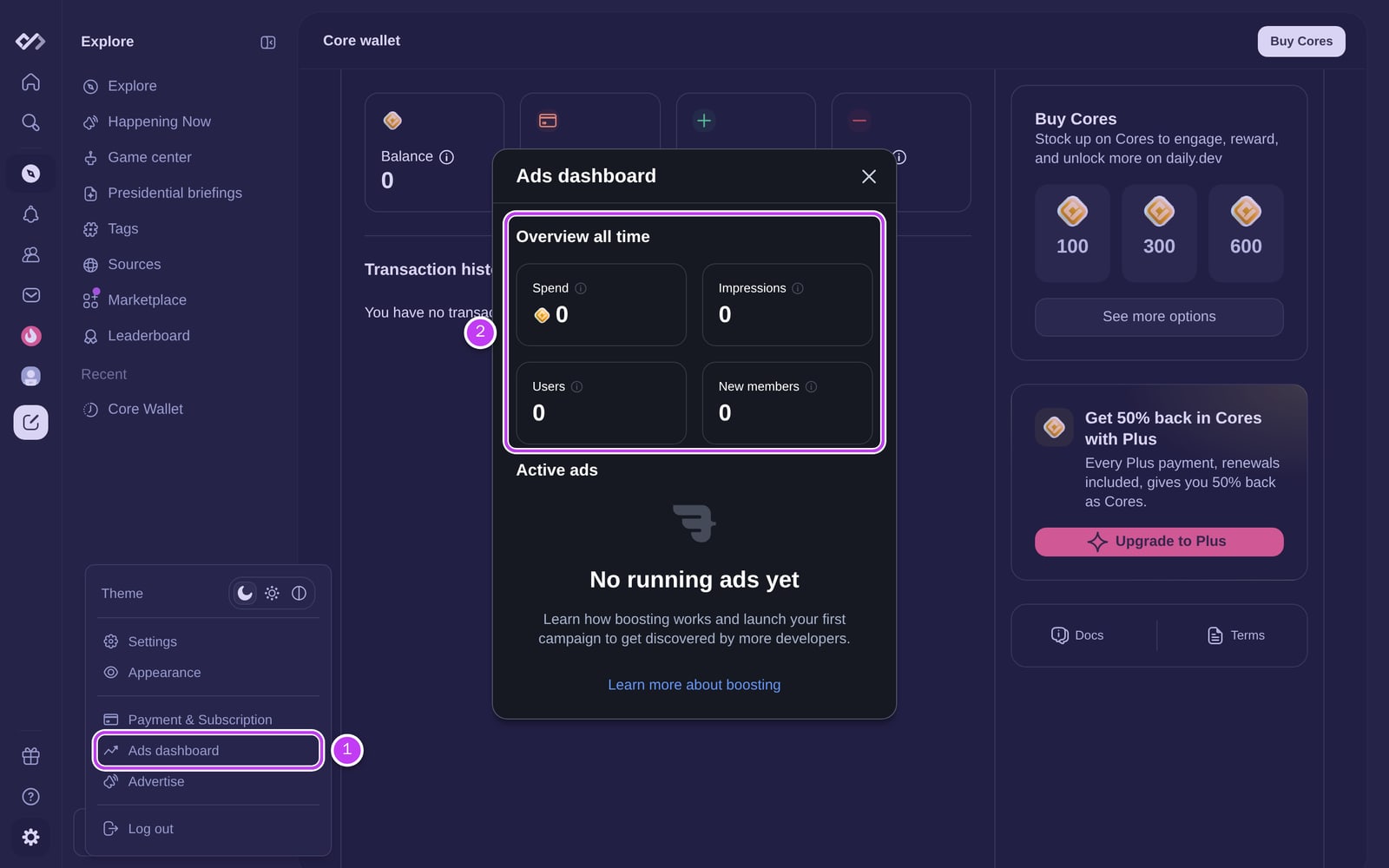
The dashboard shows, in total and for each boost:
- Spend: Cores used so far.
- Impressions: how many times your post or Squad card was shown.
- Users: how many people saw it.
- New members (Squad boosts): people who joined after clicking your Squad card.
Numbers update as the boost runs, with a short delay. A boosted post's own analytics page also shows how it's doing, including clicks.
Managing a boost
- See or stop a post boost: click Boosting on the post, choose Manage ad in its options menu, or open the boost from the Ads dashboard. Then choose Stop campaign.
- See or stop a Squad boost: click Boosting on the Squad page, or open it from the Ads dashboard.
- Boost again: when a boost has ended, open it from the Ads dashboard and choose Boost again.
- Only the person who started a boost can see its details or stop it.
Notifications
You get a notification (in-app, email, and push) when your boost is 70% done and when it ends.
Supporting Squad growth
You don't need to be an admin or moderator to help a Squad grow. Give an Award on its posts or use Award the Squad: the Cores go to one of the Squad's admins, who can use them to boost it.
FAQs
Can I boost Squad posts?
Yes, if you wrote or shared the post. Post Boost works for any of your published posts, including those in Squads.
Can I boost private Squads?
No. Only public Squads can be boosted.
Do I need to configure targeting?
No. Targeting is automatic, based on the post or the Squad's recent topics.
Can I run multiple boosts at once?
Yes, on different posts. Each post or Squad can have only one boost running at a time.
Can I boost from my AI agent?
Yes. The Public API and MCP server can estimate, start, and stop boosts.
Need help?
Reach out anytime at support@daily.dev