Browser extension installation guide for daily.dev
The daily.dev browser extension is a powerful tool to enhance your daily.dev experience. It allows daily.dev to show up in a new tab, helping you develop a daily reading habit. You can pause the new tab behavior on daily.dev at any time. Additionally, the extension provides access to the companion widget for daily.dev for added convenience.
Supported browsers for daily.dev
You can install the daily.dev extension on the following browsers:
Install the extension and open a new tab to begin.
Using alternative browsers?
If you’re using Safari, Firefox, Brave, Opera, Vivaldi, or another browser, you can try out our progressive web app for daily.dev, which has all the core functionality you need!
Troubleshooting common issues
How to restore Chrome's bookmarks bar
To bring back your bookmarks bar in Google Chrome, you can follow these two methods:
Using keyboard shortcuts
- Windows users: Press CTRL + SHIFT + B
- Mac users: Press CMD⌘ + SHIFT⇧ + B
Using Chrome's settings menu
- Click on the three dots (⠇) on the top right corner of your Google Chrome browser.
- Go to Bookmarks > Show Bookmarks Bar.
Adding custom shortcuts to daily.dev
If you are using the daily.dev extension, you can add custom shortcuts to easily access your frequently used sites.
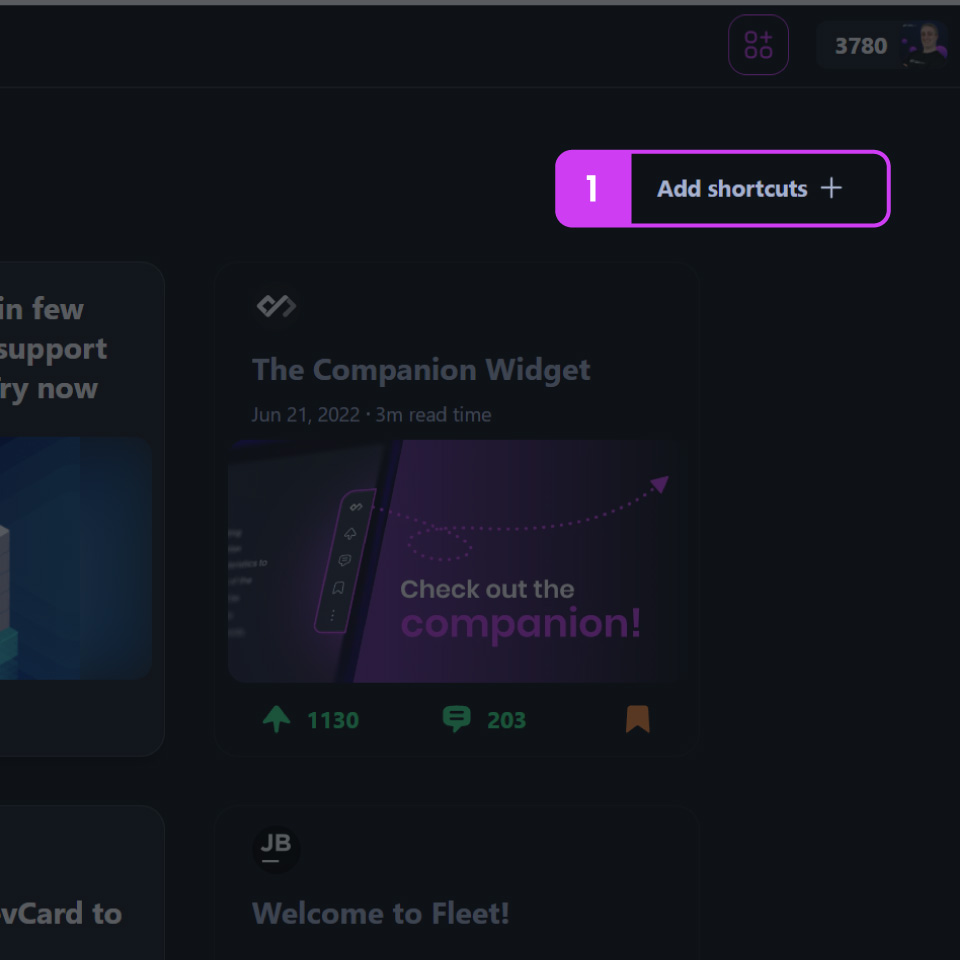
Click on the "Add Shortcuts" button (1), located towards the top right of your feed.
A modal will appear with the following options:
- My Shortcuts (2)
- Most Visited Sites (3)
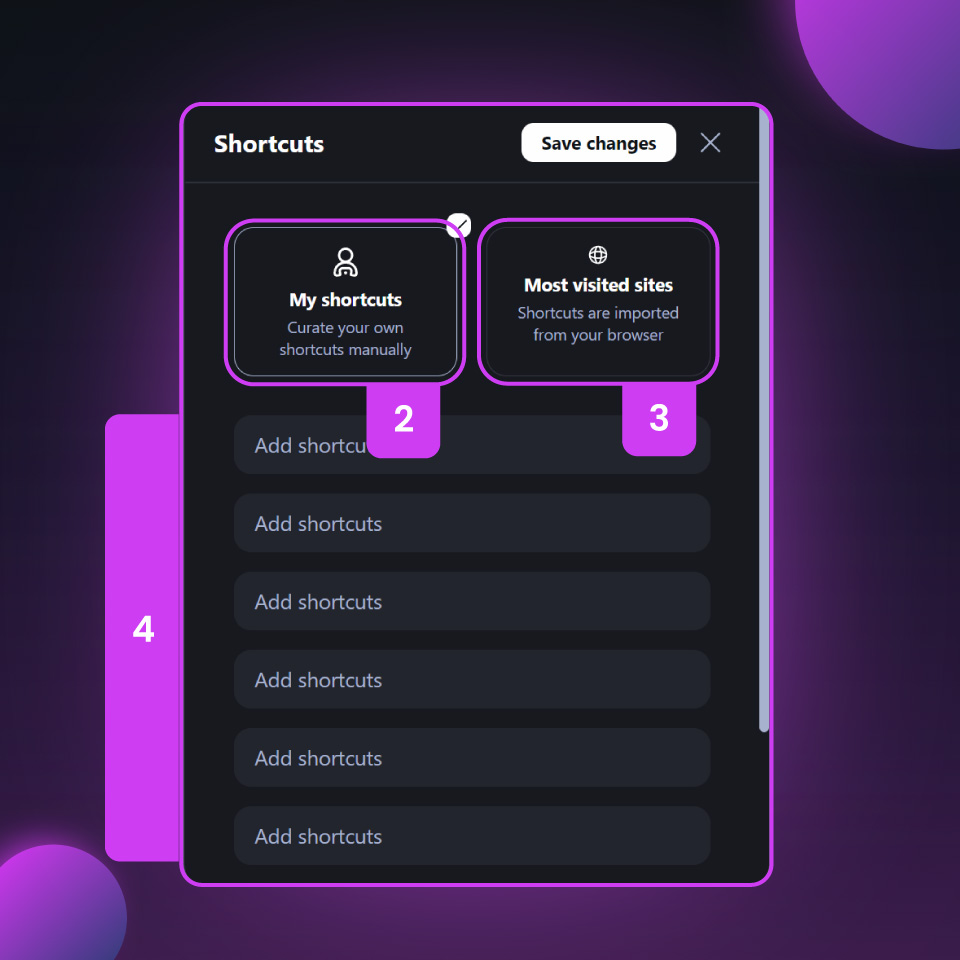
By default, "My Shortcuts" will be shown.
To configure your own shortcuts, simply add the full URL of each site into the list below (4) and save your changes.
Importing shortcuts from Chrome to daily.dev
You can easily import your most visited sites from Google Chrome to save time creating shortcuts manually. Here's how:
Click on "Most Visited Sites" (3 above).
A modal will appear, informing you that we need additional permissions. Click "Next" (5) to continue.
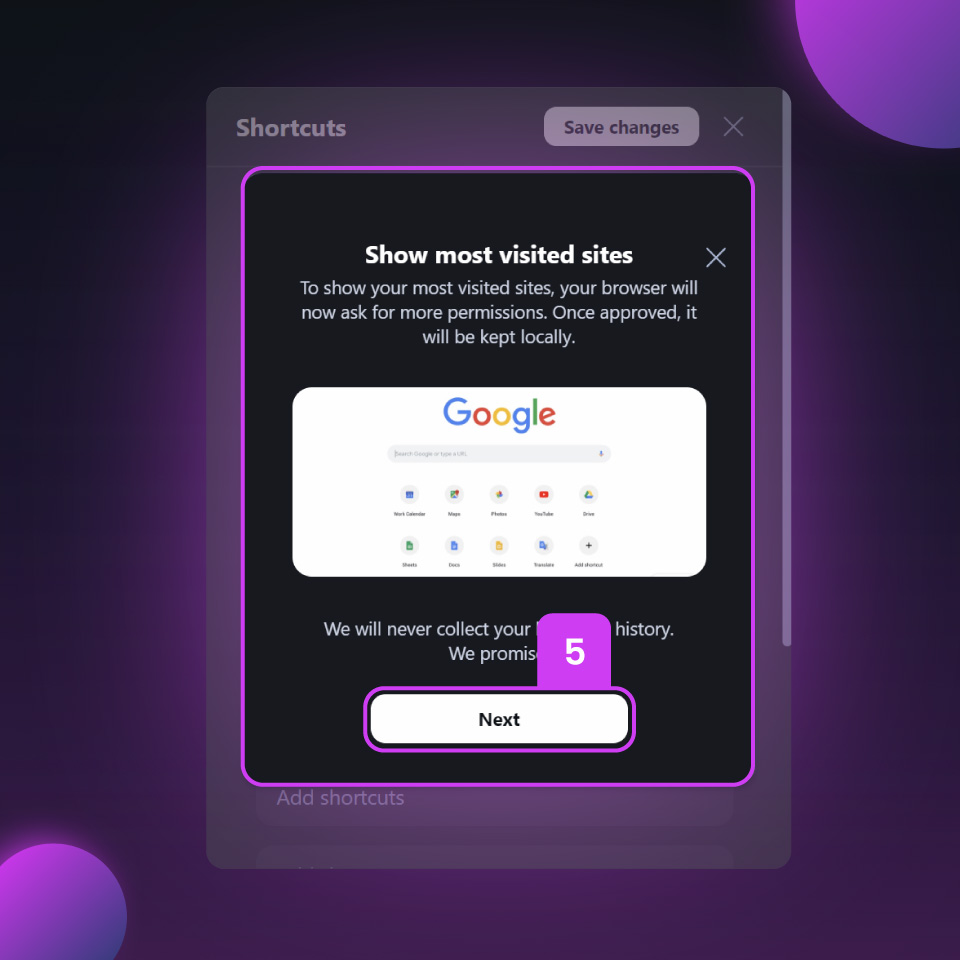
Grant the necessary permissions when prompted.
The list of shortcuts will be automatically populated with your most visited sites.
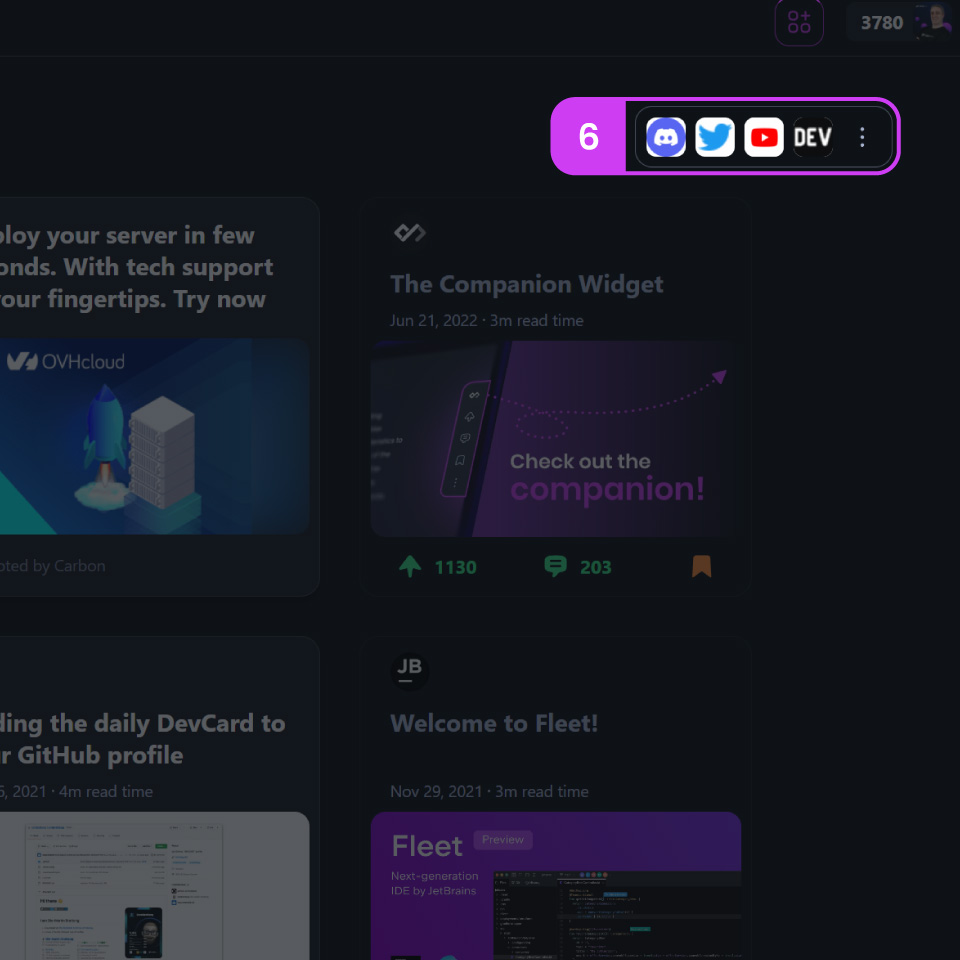
Save and close the modal to see your selected shortcuts in place of the "Add Shortcuts" button (6).
You can always modify your shortcuts by clicking on the three dots (⠇) at any time.