

Slack integration for Squads

Connect your Squad to a Slack channel and every new post in the Squad is posted there, with a link back to daily.dev. It's an easy way to keep a team or community in the loop where they already talk.
What you need
- You must be an admin of the Squad. Moderators and members don't see the Integrations section.
- You need permission to add apps to the Slack workspace.
Connecting a Squad to Slack
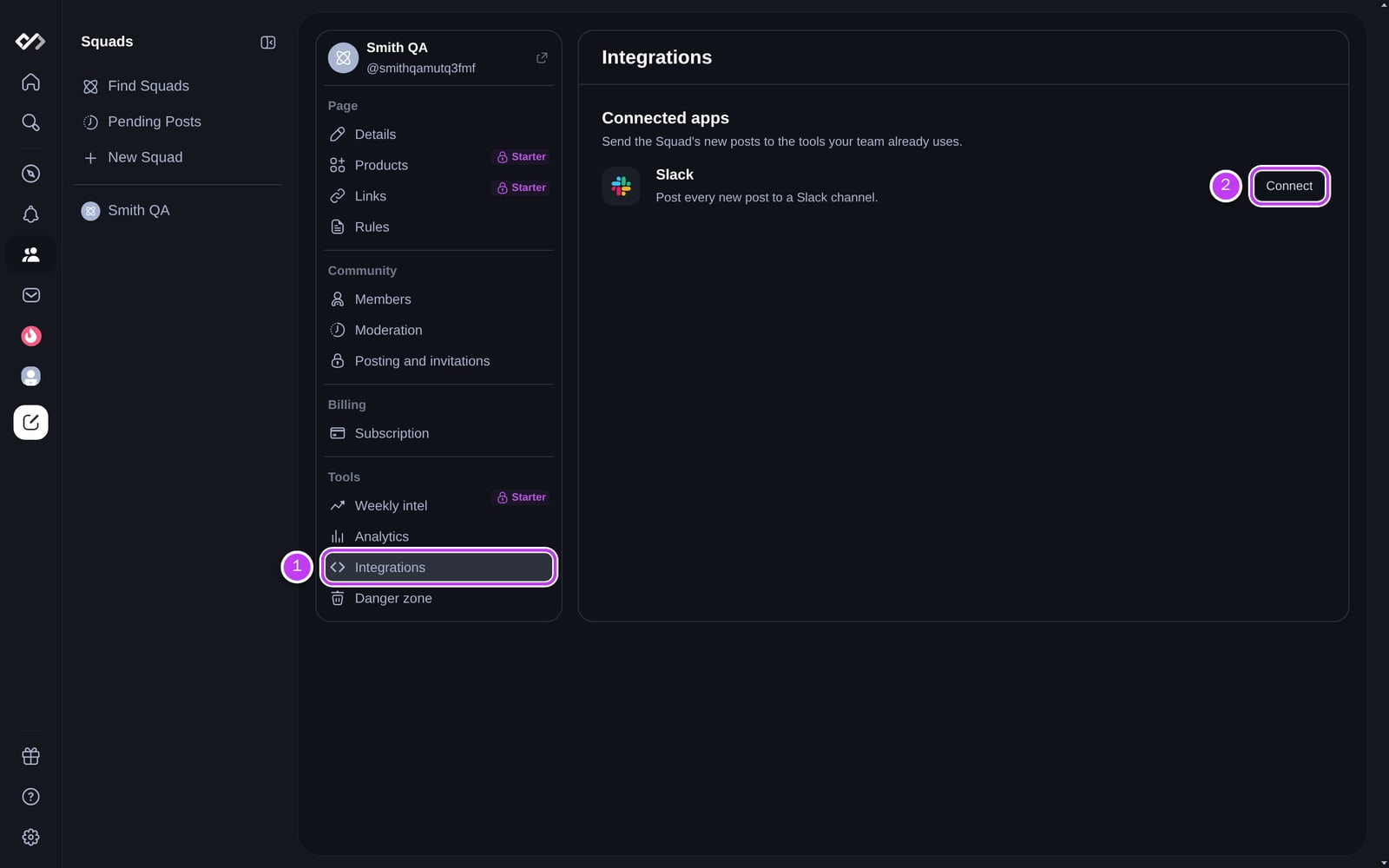
- On the Squad page, open Manage > Integrations (1).
- Next to Slack, click Connect (2), then Connect to Slack.
- Authorize daily.dev in your Slack workspace. You're sent back to daily.dev.
- In Configure Integration, pick the workspace and the channel, then click Save.
The daily.dev app posts a message in the channel to say the Squad is connected, and new posts start arriving from then on.
Starting a new Squad from Slack
When you create a Squad, choose Quick start with Slack. After you authorize your workspace, the Squad's name and handle are filled in from the workspace name, and you can pick the channel on the same form. The channel is connected as soon as you click Create Squad.
Using a private channel
The channel list only shows private channels the daily.dev app can post in. To use one:
- Open the private channel in Slack and type
/invite @daily.dev. - Go back to daily.dev and refresh the page.
- Pick the channel in Manage > Integrations and click Save.
What gets posted
- Every new post published in the Squad, as a message with a link and a preview card. For a private Squad, the link lets people in the channel join the Squad.
- Comments, upvotes, and posts still waiting for approval are not posted.
Each Squad connects to one channel. To change it, open Manage > Integrations, click Manage, pick another channel, and click Save. You can connect several Squads to the same workspace, each to its own channel.
Disconnecting
- One Squad: go to Settings > Integrations (
/settings/customization/integrations), open your Slack workspace, and remove the Squad. - The whole workspace: in Settings > Integrations, choose Revoke access on the workspace. This disconnects every Squad you connected through it. The daily.dev app stays installed in Slack until a Slack admin removes it.
Troubleshooting
- Posts stopped arriving: if the channel was archived, the daily.dev app was removed from it, or access to the workspace was revoked, daily.dev disconnects the Squad and sends you a Slack disconnected notification. Reconnect from Manage > Integrations. Reconnecting the workspace doesn't restore Squad connections, so pick the channel again.
- "This source is already connected to a channel": another admin already connected this Squad with their own Slack account. Only they can remove that connection.
- A private channel is missing or won't save: invite the app to the channel first (see above).
- No Integrations section: you need to be an admin of the Squad (see Moderating your Squad for roles).
Other ways to use Slack
The same Slack connection also lets you:
- Send any post to Slack: use Slack in a post's share options to send it to a channel, with your own message.
- Get your Presidential Briefing in Slack (Plus): choose Slack as the delivery channel in the briefing settings.
For notifications inside daily.dev, see Notification settings. To bring more people into your Squad, see Growing your Squad.
For further help, contact support@daily.dev.