

Profile experiences
Profile experiences turn your daily.dev profile into a full picture of your background. They appear at the bottom of your profile, and they help other developers, Squad admins, and Career Mode understand what you've done.
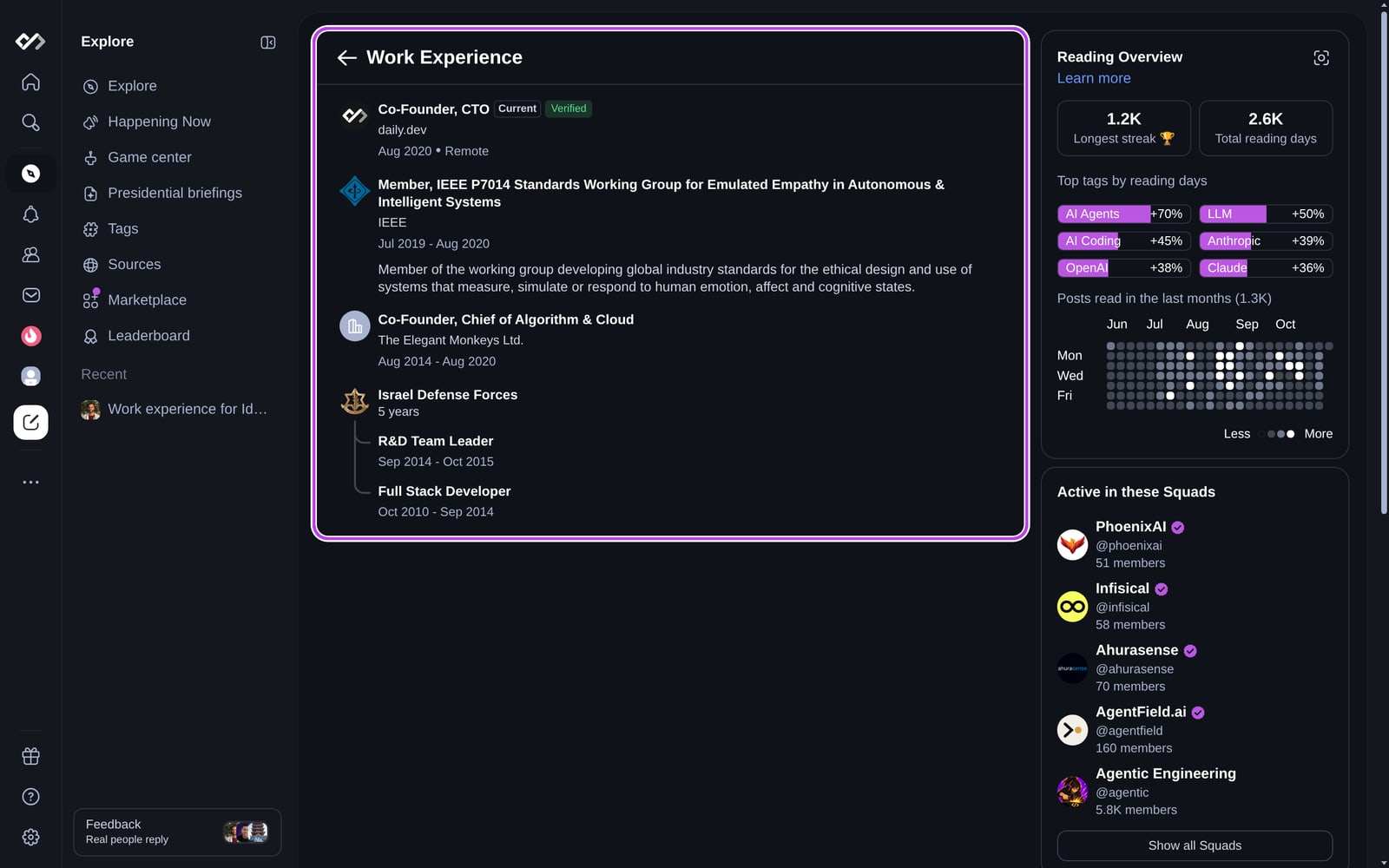
Experience types
You can add six kinds of entries. Each has its own page under Career in your settings:
| Type | Settings page | What you fill in |
|---|---|---|
| Work experience | Work Experience | Job title, employment type, company, company domain, current position, dates, location, description, and skills |
| Education | Education | School, degree, field of study, current education, dates, grade, and description |
| Certifications | Certifications | Certification name, issuing organization, currently valid, dates, credential ID, credential URL, and description |
| Open source | Open source | Title, repository, whether it's active, dates, and description |
| Projects & publications | Projects & Publications | Title, publisher, whether it's ongoing, publication date, publication URL, and description |
| Volunteering | Volunteering | Organization, role, current role, dates, and description |
Dates are a month and year. Entries with no end date (current jobs, ongoing education) are listed first.
Adding and editing entries
- Open Settings and pick the page for the type you want under Career.
- Click Add, or click an existing entry to edit it.
- Fill in the form. Fields marked with * are required, and every entry needs a company, school, publisher, or organization. Open source entries can use a GitHub repository instead.
- Save. To remove an entry, open it and delete it.
When you type a company, pick it from the suggestions to link the entry to that company and show its logo. If your company isn't listed, type the name and add its domain so we can find its logo.
Skills
Work entries have a skills field, where you can list up to 50 technologies or skills you used in that role. Skills show on the entry on your profile. To show the tools you use day to day, add them to Stack & Tools.
Filling in your profile from your CV
If you don't have any entries yet, you can import them from your CV:
- On your profile or an empty experience page, find Autofill your profile!
- Click Upload PDF and choose your CV. PDF and DOCX files work.
- We read your CV and add your work experience, education, and other entries. You get a notification when it's done.
Prefer LinkedIn? Use Import your CV from LinkedIn in the same banner to see how to export your LinkedIn profile as a PDF. If you already have experience entries, uploading a CV doesn't change them.
What visitors see
- Each section shows your three most recent entries, grouped by company. Show More opens the full list.
- To hide every experience section from visitors, turn on Hide work history in Settings → Profile. You still see them on your own profile.
Verifying your current job
A current work entry shows a Verify company button. Verify your work email to get a Verified label on the entry and the verified company badge next to your name.
Why fill in your experience
- Your profile becomes more useful to the people who visit it.
- Work experience and education count toward your profile completion, and adding experience unlocks achievements.
- Career Mode uses your experience to find relevant roles.