

Verified company badge
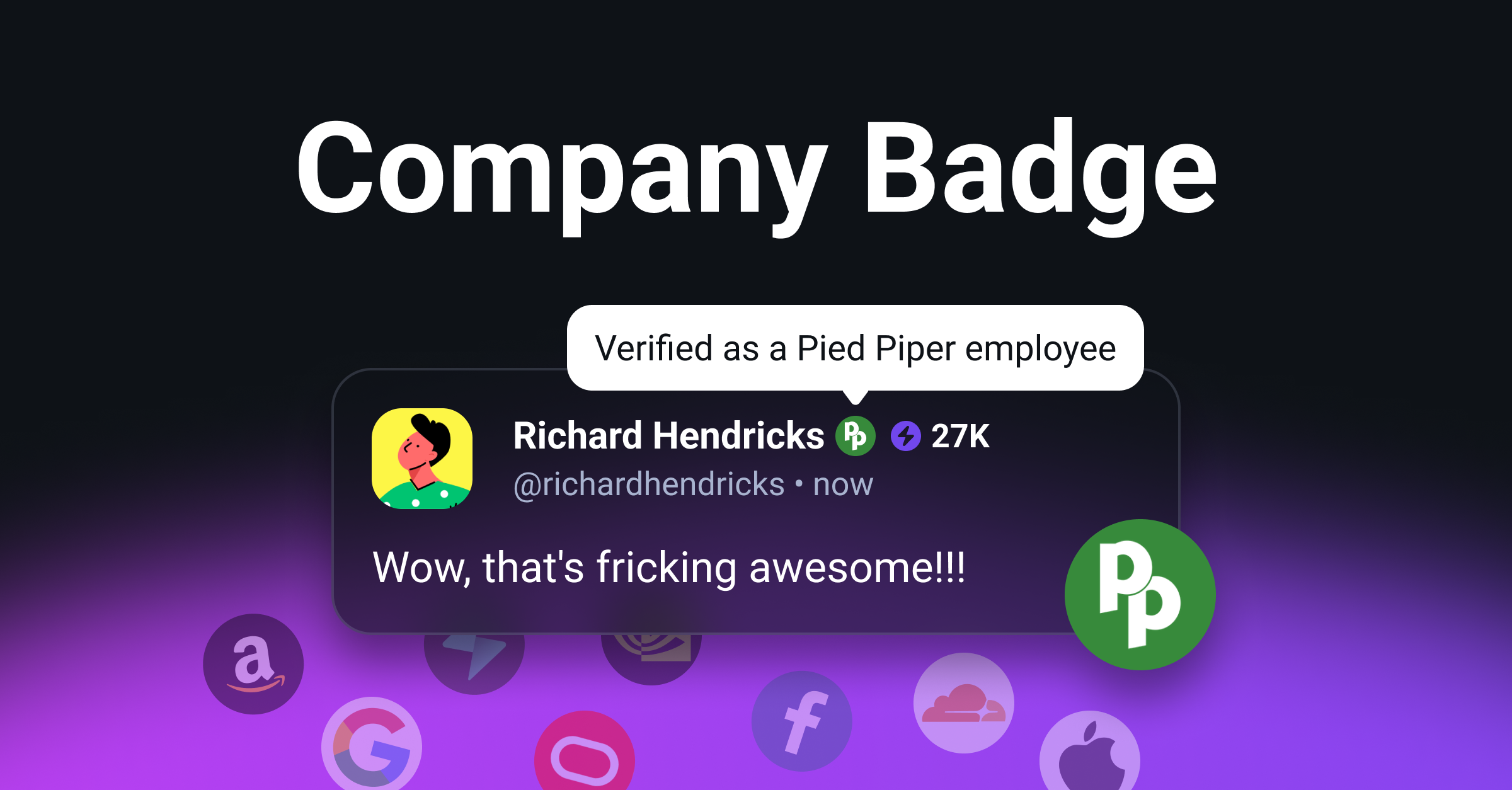
The verified company badge shows your employer's logo and name next to your name on daily.dev. It tells other developers that you really work there.
The badge appears:
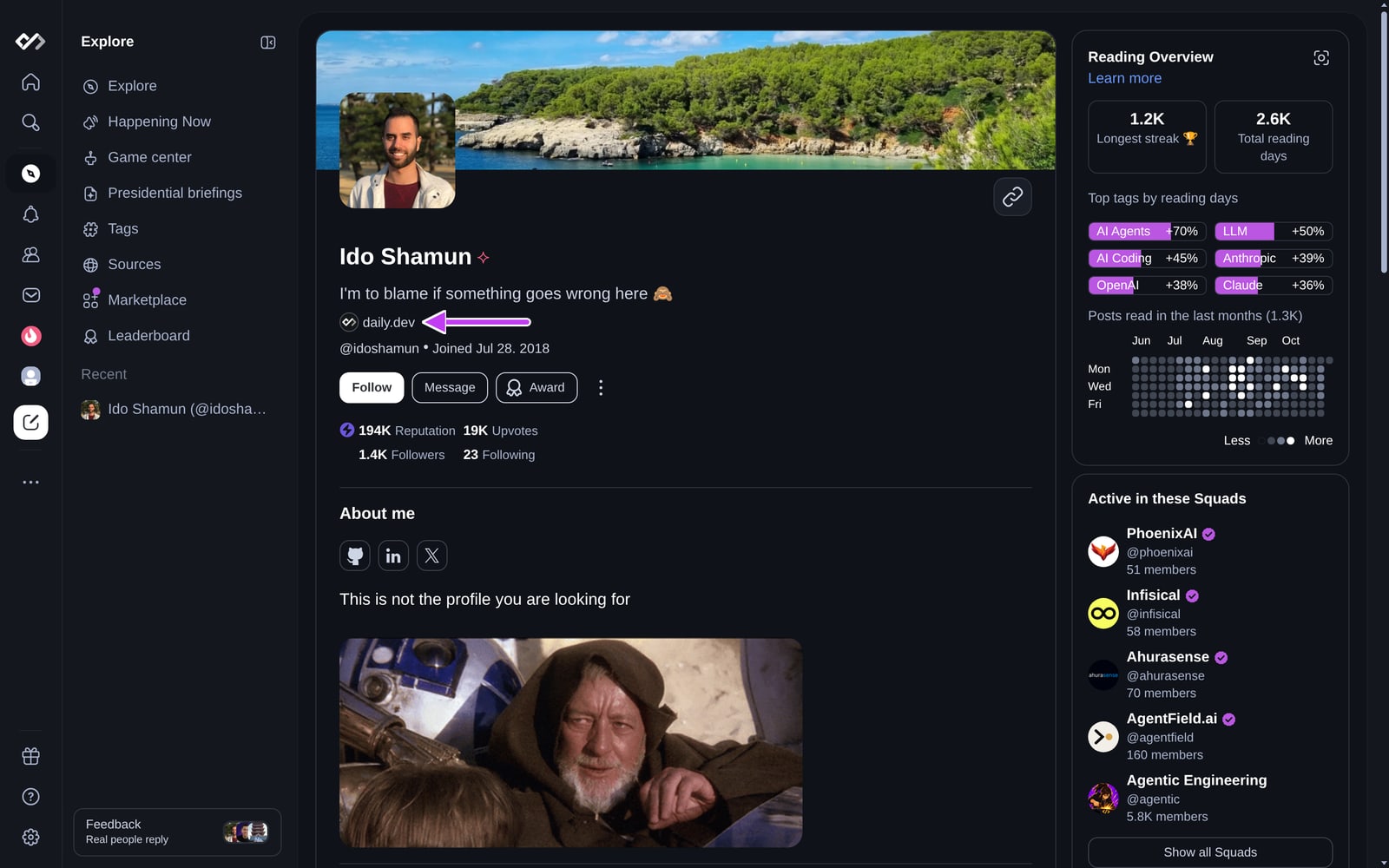
- On your profile header, under your headline.
- Next to your name on your comments, your posts in Squads, and your profile cards.
Hovering over the badge shows "Verified as a [company] employee." Verified employees can also help their company set up a Verified Company Squad, and a verified work email lets you join the discussion on tool pages.
Before you start
You need access to your work email, because we send a verification code to it.
Eligibility
Only real, active companies can be verified.
Who is eligible
- Employees with a valid work email from a recognized company domain.
- Full-time and part-time employees working directly for a company.
- Contractors working through a company email provided by the employer.
- Non-commercial organizations, such as non-profits, charities, or government entities.
Who isn't eligible (for now)
- University or academic institution emails.
- Freelancers, even with their own domain.
- Personal portfolio sites, whatever the domain.
- Companies with websites that are not secured (e.g., lacking HTTPS).
- Companies with websites that fail to provide basic information like contact details, an “About Us” page, and details about their services or products.
- Temporary or disposable email addresses.
- Shared domain emails (e.g., info@domain.com, admin@domain.com).
- Companies with official websites that cannot be accessed for any reason, including broken links, 403 errors, non-secured domains, "under construction" pages, or any other issues that prevent verification of the company's existence.
How to get your verified company badge
- Add your current job. Go to Settings → Work Experience (under Career) and add your current workplace, with Current position turned on. You can also fill in your experience from your CV. See Profile experiences.
- Click Verify company. A Verify company button appears on your current, unverified job, both in settings and on your profile.
- Enter your work email and click Send code.
- Enter the 6-digit code from the email and click Verify email.
If your company is already registered on daily.dev, you'll see Verification successful and the badge appears right away, and your job gets a Verified label. If your company is new to us, you'll see Verification initiated: our team reviews the company and the badge appears once it's approved.
Keeping your badge
- The badge shows only while the job is your current position. If you add an end date, it disappears.
- The job on your profile has to be linked to the same company you verified. If you edit the job and pick a different company, the badge disappears.
- If you have more than one verified current job, the most recent one is shown.
Troubleshooting
- No Verify company button? Make sure the job is your current position.
- Didn't receive the code? Check that the email is correct and look in your spam folder. You can request a new code after 60 seconds with Resend code.
- Invalid code? Codes expire after about an hour, and sending a new code replaces the old one. Use the most recent code.
- Error after several tries? Verification is limited to a few attempts per hour. Wait an hour and try again.
- "Please use a different one"? That email is already in use by another daily.dev account.
- "We can only verify unique company domains"? The domain is a shared or free email provider. Use your company's own domain.
- Still waiting after "Verification initiated"? New companies are reviewed by our team, which can take a few days.
To change your name, username, or other profile fields, see Account settings. For anything else, contact support@daily.dev.